 Rinnah FuelBack to home
How to install Rinnah Fuel
Add Rinnah Fuel to your phone or computer so you can open it quickly, just like your other apps.
Quick access from your home screen or desktop
Rinnah Fuel is a web app, so you install it directly from your browser. You do not need to download it from an app store.
The exact menu wording may differ slightly depending on your phone, computer and browser version. Look for Install app, Install page as app or Add to Home Screen.
The screenshots below are examples from other websites. Their colours, names and icons will be different, but the browser buttons and steps are similar when installing Rinnah Fuel.
- Install directly from Chrome, Safari or Microsoft Edge
- Open Rinnah Fuel from your home screen, desktop or app list
- Keep using the same Rinnah Fuel account after installation
Install on an Android phone using Chrome
- Open Rinnah Fuel in Chrome and sign in.
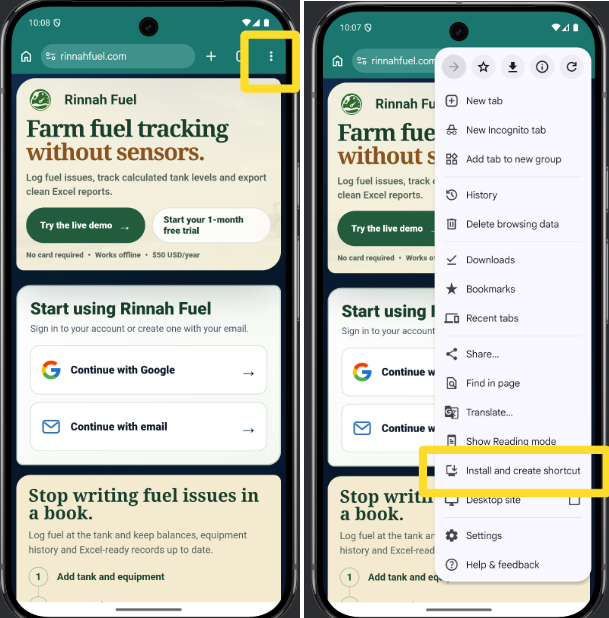
- Tap the three-dot Options menu in the top-right corner.
- Tap Add to Home screen, then choose Install app. Some phones may show Install app immediately.
- Tap Install or Add to confirm. The Rinnah Fuel icon will appear with your other apps.
Install on an iPhone or iPad using Safari
- Open Rinnah Fuel in Safari and sign in.
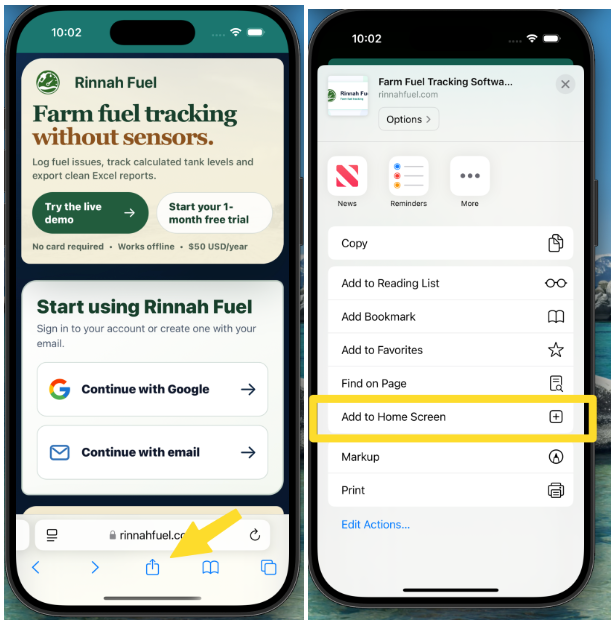
- Tap the Share button. On newer versions of Safari, first tap the three-dot menu and then Share.
- Scroll down and tap Add to Home Screen.
- Make sure Open as Web App is enabled, then tap Add.
Install on a computer using Chrome or Edge
- Open Rinnah Fuel in Chrome or Microsoft Edge and sign in.
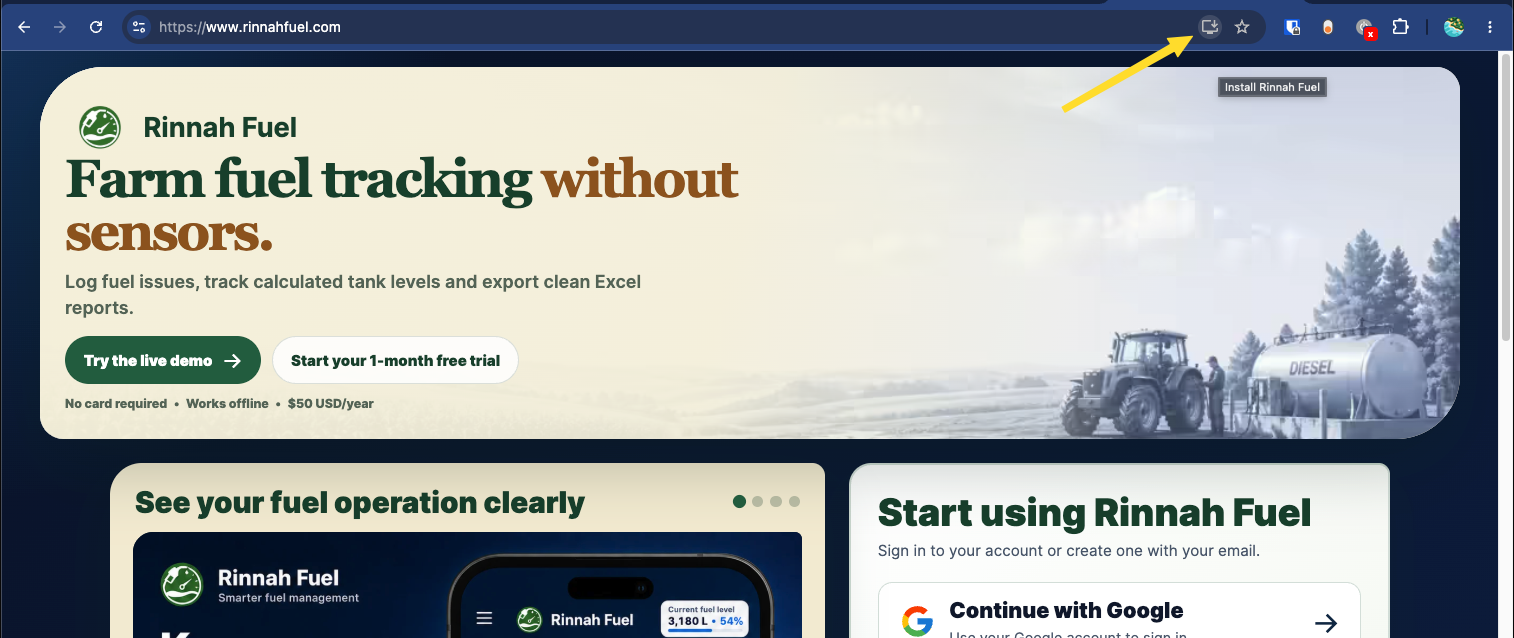
- Look for the Install icon at the right of the address bar and select it.
- If you do not see the icon, open the three-dot menu. In Chrome, choose Cast, save and share, then Install page as app. In Edge, choose More tools, Apps, then Install this site as an app.
- Select Install to confirm. You can then open Rinnah Fuel from your desktop, Start menu, dock or app list.
Installation examples
These examples show Rinnah Fuel open in Chrome on Android, Safari on iPhone and Chrome on a computer. Menu wording may differ slightly between browser versions.
Screenshot examples: These images are for reference only and are not interactive. Open Rinnah Fuel to use the buttons shown.
How it works
- Open Rinnah Fuel in a supported browser.
- Choose the browser option to install the app or add it to your home screen.
- Confirm the installation and open Rinnah Fuel from its new icon.
Installing the app only adds a convenient shortcut. Your account, fuel records and settings remain the same.
Common questions
Do I need to download Rinnah Fuel from an app store?
No. Open Rinnah Fuel in Chrome, Safari or Edge and install it from the browser menu.
What if I cannot see an Install option?
Look for Add to Home Screen instead. On a computer, also check for an install icon at the right of the address bar.
Will installing the app create a new account?
No. Open the installed app and sign in with your existing Rinnah Fuel account.