 Rinnah FuelBack to home
How to invite team members
Share the account code, approve the join request and choose the new member’s role.
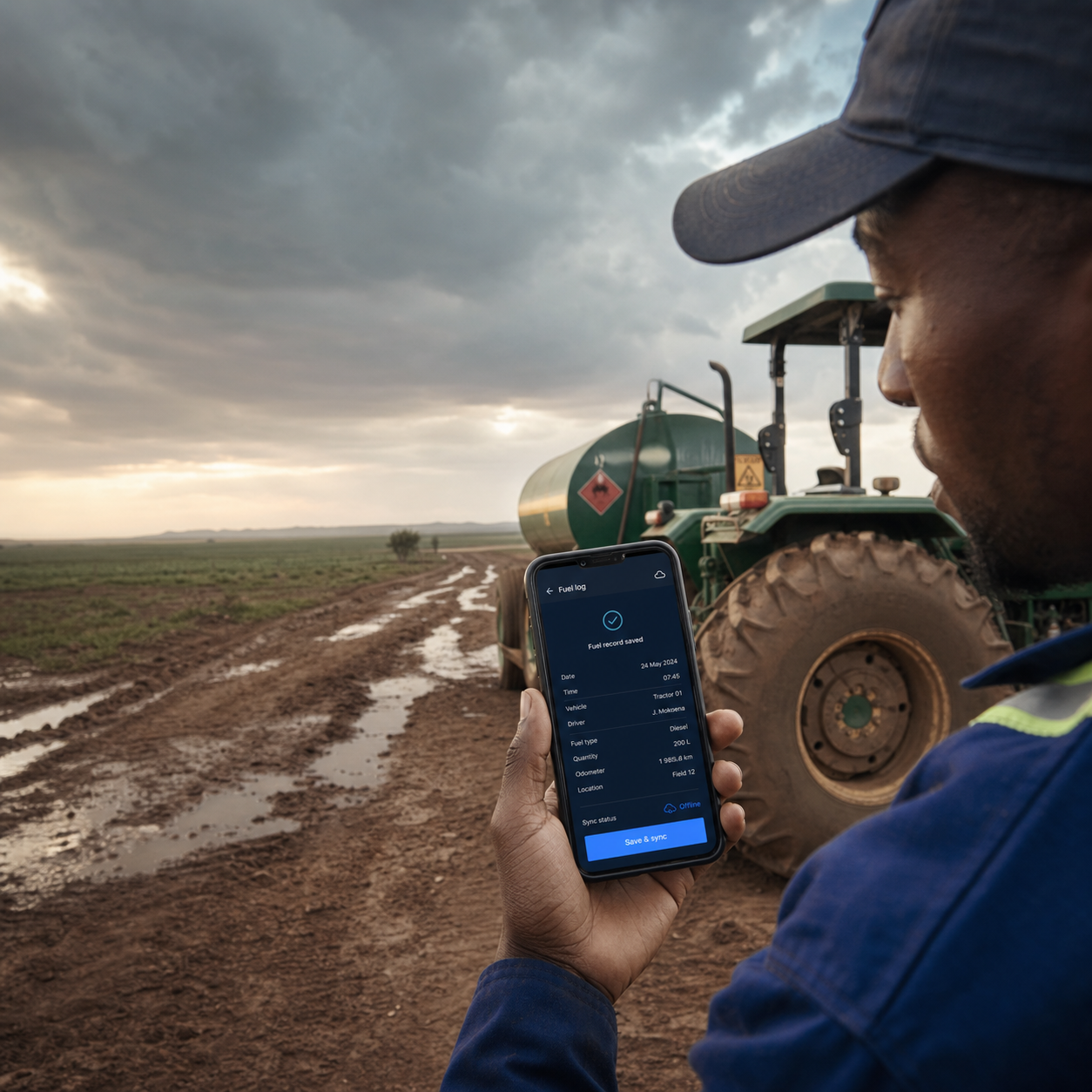
Let each person use their own account
New members request access with the shared account code. An owner or administrator reviews the request before access is granted.
The account code is available in Account settings. Share it only with the intended person. They sign in, enter the code and send a request that appears under Join requests.
- Share one account code securely
- Approve or reject each request
- Assign member or administrator access
Invite and approve a team member
- Open Account settings, find Account code and select Copy code.
- Send the code to the person you want to invite.
- The new member signs in, chooses Join an existing account, enters the code and selects Request access.
- Open Join requests, review the email, choose the role and approve the request.
The new member can refresh their request status and activate the approved account after approval.
How it works
- Copy and share the account code.
- Wait for the person to request access.
- Review and approve the request.
Members can log fuel; administrators can also manage account data, records, exports and settings.
Common questions
Where do I find the account code?
Open Account settings. The code appears with the account details and can be copied with Copy code.
Does sharing the code give immediate access?
No. The person must sign in and request access, and an owner or administrator must approve the request.
Which role should I choose?
Choose Member for normal fuel logging. Choose Administrator only for people who should manage settings, users, records and exports.