 Rinnah FuelBack to home
How to set up multiple fuel tanks
Add a second tank, choose what it stores and keep each tank’s fuel balance separate—all in one account.
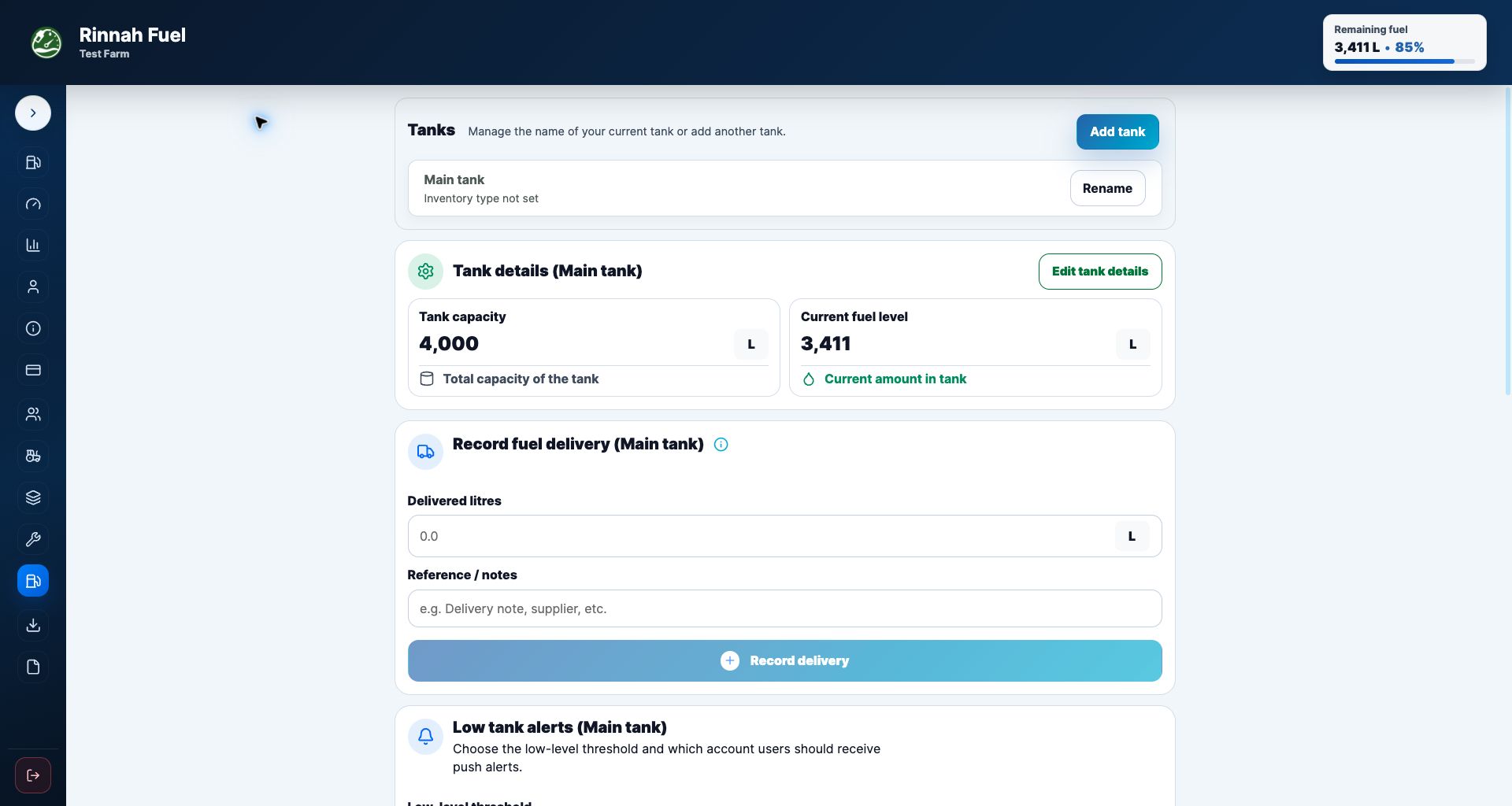
Start in Fuel inventory
Open Fuel inventory from the management menu. At the top of the page, find the Tanks section and select the blue Add tank button.
You must be an account owner or administrator to add or change tanks. Connect to the internet before starting.
Have a clear name and inventory type ready for each tank—for example, Main diesel and Workshop petrol. Enter the capacity and measured current level if known; do not guess an opening balance.
1. Confirm the current tank
Adding your second tank starts a short setup flow: Current tank, New tank, then Review.
- Select Add tank in Fuel inventory.
- Check the existing tank’s name and choose its inventory type, such as Diesel.
- Select Confirm & continue.
2. Enter the new tank details
- Give the tank a unique, recognisable name, such as Workshop petrol or Reserve diesel.
- Choose the inventory type stored in this tank. If it is missing, select + Add inventory type…, enter its name, then select Add and select.
- Enter the tank capacity and current level in litres when known. The current level cannot exceed capacity.
- Select Continue to review.
3. Assign vehicles and activate
- Check both tank names, inventory types, capacities and opening levels.
- If every vehicle uses the current tank’s inventory type, choose the option to assign that type to all vehicles.
- If the fleet uses different types, choose Some vehicles use a different type and select the correct type for each active vehicle.
- Select Activate multiple tanks to save the setup.
Each active vehicle needs an inventory type represented by a tank in the setup. This determines which equipment appears when the team chooses a tank to log fuel.
Add another tank later
- Return to Fuel inventory and open the Tanks section.
- Select Add tank.
- Enter the tank name and choose its inventory type.
- Enter the capacity and current level when known, then select Continue to review.
- Check the details and select Add tank.
Later tanks skip the initial current-tank and vehicle-assignment setup. Use Edit beside a tank to change its name or inventory type.
Log fuel with multiple tanks
- Open Log fuel and choose the tank where the fuel is being issued.
- Select the vehicle category and equipment assigned to that tank’s fuel type.
- Complete the operator, litres and meter details, then save the entry.
The selected tank balance is reduced by the logged litres. Fuel logged against another tank does not change the selected tank’s balance.
How it works
- Have an owner or administrator configure the tanks and vehicle fuel types.
- Choose the correct tank whenever fuel is logged.
Use separate tanks for diesel, petrol, workshop fuel, reserve stock, or different farm and depot locations.
Common questions
Who can add or change tanks?
Only the account owner or an administrator can add, rename, update or archive tanks. Regular members can log fuel against tanks that have already been configured.
Why can I not see Add tank?
Check that you are in Fuel inventory and are an owner or administrator of the selected account. Regular members do not see Add tank, even if they can record deliveries. A read-only account shows Fuel setup is paused. If these checks do not explain it, contact support to check the account’s tank access.
Why is Add tank disabled?
Adding tanks requires an internet connection. Reconnect and wait for any current save to finish, then try again.
Do I need a different account for each tank?
No. Multiple active tanks can be managed in one account, with each tank keeping its own inventory and fuel history.
Can vehicles use different fuel types?
Yes. During setup, assign each vehicle to an inventory type represented by an active tank. The selected tank then filters which vehicles are available when fuel is logged.